How to compress an image to 20, 50 or 100 KB (and what you lose)
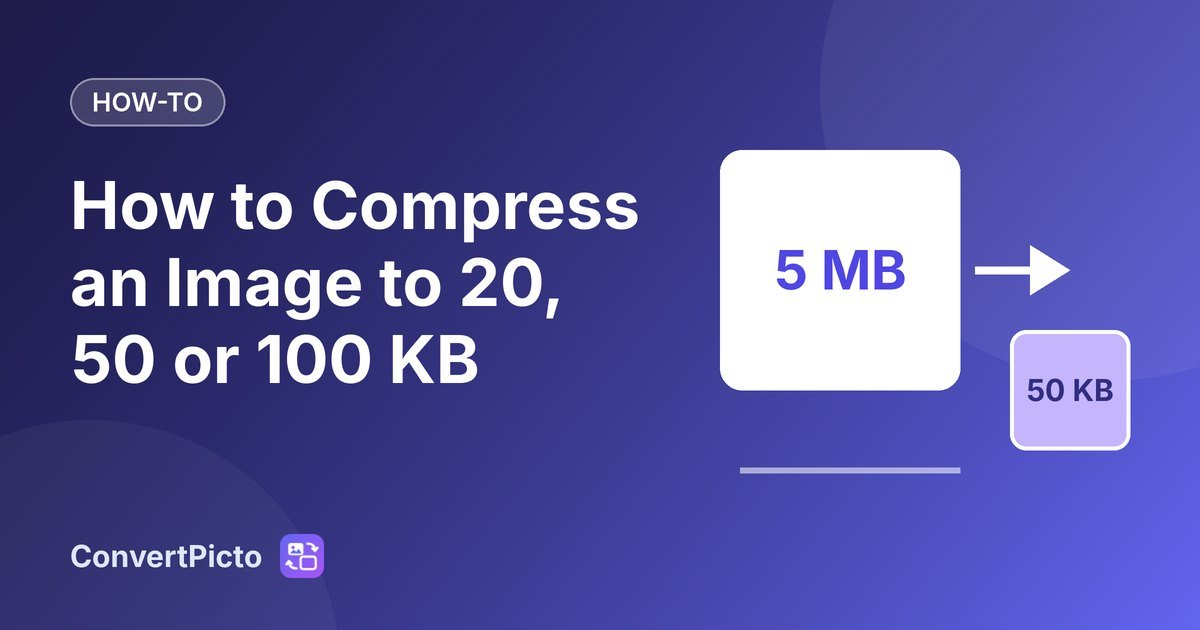
Job applications, exam registrations, visa portals and bank KYC forms all love a hard file-size limit: "photo must be between 20 and 50 KB", "document under 100 KB". Your phone photo is probably 2 to 5 MB, so it will not upload as it is. This guide shows how to get under the limit with the least damage, using numbers from our own tests.
The two things that make a file smaller
A JPG's size depends on two things: how many pixels it has, and how hard each pixel is compressed (the quality setting). To hit a size limit you can turn either dial, and the order matters.
Lower quality first. In our tests, going from quality 95 to 60 left a photo at about 28% of its size, and it still looked fine at normal viewing size. Below about 50 you start to see blocky patches and smeared edges.
Shrink the pixels second. If quality 50 is still too big, the only option is fewer pixels. Halving the width leaves a quarter of the pixels, which is a far bigger saving than any quality change (we measured this in resize vs compress).
Our "compress to N KB" tools do exactly this in that order: they test qualities from 95% down to 50%, keep the highest one that fits under your limit, and only scale the image down if even 50% is too large.
Results on a large camera-style photo
To see what happens to a big image, we made a 4000 x 2667 test photo, 2.15 MB as a JPEG. It is a real photograph enlarged with a little noise added to imitate a camera sensor, so treat the exact figures as typical rather than universal. We ran it through each page at its default setting.
| Target | Result | Dimensions | Quality used |
|---|---|---|---|
| 20 KB | 19.7 KB | 512 x 342 | 51% |
| 50 KB | 49.8 KB | 931 x 621 | 52% |
| 100 KB | 98.0 KB | 1454 x 969 | 51% |
| 200 KB | 198.3 KB | 2251 x 1501 | 56% |
| 500 KB | 498.9 KB | 4000 x 2667 | 58% |
Every result was under its limit. Note the pattern: at 20 KB the picture ends up at 512 pixels wide, at 50 KB about 931, and only the 500 KB limit leaves the full 4000 pixel width intact. For a passport-style photo, 500 to 900 pixels wide is plenty. For a document scan you want more, so use a higher limit if the form allows it.
Results on five ordinary photos
These five are smaller to begin with (0.14 to 0.87 megapixels), so the larger limits often do nothing at all. That is the right behaviour: a file that is already under the limit is returned unchanged rather than being degraded by a second compression.
| Photo | Original | 20 KB target | 50 KB target | 100 KB target |
|---|---|---|---|---|
| Astronaut (512 x 512) | 97.0 KB | 19.8 KB at 398 x 398, 57% | 48.4 KB at 512 x 512, 82% | already under, unchanged |
| Cat (451 x 300) | 49.0 KB | 19.5 KB at 451 x 300, 73% | already under, unchanged | already under, unchanged |
| Coffee cup (600 x 400) | 102.3 KB | 19.9 KB at 508 x 339, 54% | 47.5 KB at 600 x 400, 80% | 99.1 KB at 600 x 400, 95% |
| Rocket (640 x 427) | 72.3 KB | 19.8 KB at 640 x 427, 60% | 49.0 KB at 640 x 427, 90% | already under, unchanged |
| Deep-field image (1000 x 872) | 394.7 KB | 19.9 KB at 454 x 396, 58% | 49.4 KB at 798 x 696, 54% | 98.4 KB at 1000 x 872, 65% |
All 25 runs on these five photos, and the five runs on the large photo above, finished under their target.
A checklist before you upload to a form
- Read the exact limit. Does it say "under 50 KB" or "between 20 and 50 KB"? If there is a minimum, do not go too far below it.
- Check the pixel dimensions. Some forms want a specific size such as 35 x 45 mm or 200 x 230 pixels. Resize first with the resize tool, then compress.
- How does the site count a kilobyte? Most count 1 KB as 1024 bytes, which is what our tools use. A few count 1000. If your form says 20 KB and rejects a file that shows 19.8 KB here, set the target to 19 KB and try again.
- Use JPG. The output is always JPG, which every upload form accepts. If your original is a PNG with a transparent background, the transparent part turns white.
- Look at the result before you submit. Zoom to 100% and check that a face or signature is still clear.
If the result looks too blurry
- Pick the highest limit the form allows. Going from 20 KB to 50 KB lets the tool keep far more detail.
- Crop the photo to just the face or document before you compress. Fewer pixels of background means more of the budget goes to what matters.
- Retake the photo in good light. Noisy, dark photos compress badly, because the noise looks like detail to the encoder.
Privacy
Passport photos, signatures and ID cards are exactly the files you do not want on a stranger's server. The search for the best quality runs in your browser on your own device, so the image is never uploaded. You can confirm it by switching off your internet connection after the page loads and compressing a file anyway.